For registry and IT teams
Importing Data from JAMB CAPS, Remita and Your Existing Systems
Nobody wants to retype ten thousand student records. The import wizard reads the exports your systems already produce, checks every row and lets you undo a whole batch.
Start from the records you already have
Every university already has its data somewhere: an admission list from JAMB CAPS, a student portal, a payment gateway report, a Moodle site, a Microsoft or Google directory and a pile of spreadsheets. The fastest way to get value from a new platform is to bring that data in, not to type it again.
Oxonia's import wizard is built for exactly that. It reads the files those systems already export, maps the columns, checks every row before anything is written, and keeps a record of what it did.
It is worth being clear about what it is not. Oxonia does not run admissions. The admission list is decided in the university's own process, and Oxonia imports the result so that students can be set up for fees, teaching and everything else.
What you can import
The wizard takes fourteen kinds of record, in four groups:
- People and structure: people who sign in, staff and students; student records from admissions and registration; faculties and departments.
- Academic: programmes, courses and course registrations.
- Fees, for Oxonia Advance: fee accounts, bills, payments received, scholarship and hardship funds, and alumni.
- Governance: committees and bodies, committee members, and the policy register.
Each kind has a downloadable template showing the columns it expects, for teams who prefer to prepare a clean spreadsheet first. Fee records appear only for universities that use Advance, and governance records only for those that use Senate or Policy.
Each kind of record lists its fields, which are required and which are optional, with a short hint where the format matters. Dates, amounts and codes are checked as they are read, so a misplaced column shows up in the dry run rather than in a student's fee account.
Built-in profiles for common exports
A source profile tells the wizard which column names a particular system usually uses, so the mapping fills itself in. Eight are built in:
- JAMB CAPS admission list
- Nigerian student portal export
- Remita payment export
- Paystack transactions export
- Moodle user export and Moodle course export
- Google Workspace user export
- Microsoft Entra ID (Microsoft 365) user export
Profiles describe typical exports only. If your portal names a column differently, adjust the mapping once and save it as your university's own profile. Next term, the same export maps itself.
Columns mapped for you
When a file is uploaded, the wizard detects its columns and maps them, either from the chosen profile or automatically from a list of common names for each field. Column headers are compared without case, spaces or punctuation, so Matric No, MATRIC_NO and matric no all match.
The wizard reads Excel workbooks and CSV or TSV files, separated by commas, semicolons, tabs or pipes, in UTF-8 or Windows-1252. Each file can hold up to 20,000 rows. Larger lists are simply split into several files.
Uploaded files are kept in private storage. The whole import runs inside the university's own data space, and every step is written to its audit log.
| Profile | Imports | Worth knowing |
|---|---|---|
| JAMB CAPS admission list | Student records | JAMB number kept until a matric number is issued |
| Nigerian student portal export | Student records | Levels 100L to 700L; sessions such as 2025/2026 |
| Remita payment export | Payments | Successful payments only; map Payer ID to student number |
| Paystack transactions export | Payments | Kobo converted to naira; payer matched by email |
| Moodle user and course exports | People, courses | Standard Moodle download columns |
| Google Workspace user export | People | Admin console download columns |
| Microsoft Entra ID user export | People | Microsoft 365 admin centre columns |
A dry run before anything is written
Before a single record changes, the wizard runs a dry run. It checks every row and reports errors, warnings, duplicates within the file and matches with records already held. You see exactly what will happen.
When you are happy, the import runs in the background with a progress bar. At the end you get a report and a downloadable list of problem rows, which can be fixed in the spreadsheet and imported again.
If something still goes wrong, perhaps the wrong session's file was used, the whole batch can be undone in one step. That safety net is what lets a registry team move quickly without fear.
Matches with records already held are especially useful in the second and later imports. The dry run shows which rows match records already held, so a student who appears in this session's export and last session's can be recognised before anything is written, rather than creating a duplicate.
Details that matter in Nigeria
The built-in profiles carry local knowledge. With the JAMB CAPS profile, the JAMB registration number is kept as the student's number until a matriculation number is issued, and mode of entry defaults to UTME at 100 level. The student portal profile understands levels from 100L to 700L, sessions written as 2025/2026, and UTME or direct entry.
The Remita profile imports only successful payments, and recognises the Payer ID or Customer ID column that often carries the student number. The Paystack profile converts amounts from kobo to naira, imports only successful transactions and matches the payer to a fee account by email.
Together, these mean the first fees import usually needs little or no manual mapping. See faster fee collection with Advance and Wallet for what happens next.
Staff records, and where to start
Staff records for regulator work are imported in Oxonia Nexus in the same spirit: upload a CSV or Excel file, map the columns, validate with a preview, download the errors, review suggested duplicates and commit. Rows with errors are never imported, and nothing is written until someone commits.
A good order for a new university is people first, then faculties and departments, programmes and courses, then student records and registrations, and finally fee accounts, bills and payments. Each step builds on the one before.
Our team plans the go-live with you, including which exports to take and when. Read the getting-started guide for the full sequence.
Keep the source systems running while you import. Oxonia reads their exports; it does not switch them off. Many universities import fresh exports each session for the first year, before deciding which records to maintain directly in Oxonia.
Products in this article
Questions people ask
Does Oxonia replace our admissions system?
No. Oxonia has no admissions system. It imports the admission list, for example from JAMB CAPS, after the university has made its decisions.
Which file types can we upload?
Excel workbooks and CSV or TSV files, up to 20,000 rows per file.
What if a column has a different name in our portal?
Change the mapping once and save it as your own profile. It will be used automatically next time.
Can we reverse an import?
Yes. A whole batch can be undone, and every step is in the audit log.
Leaflets


More videos
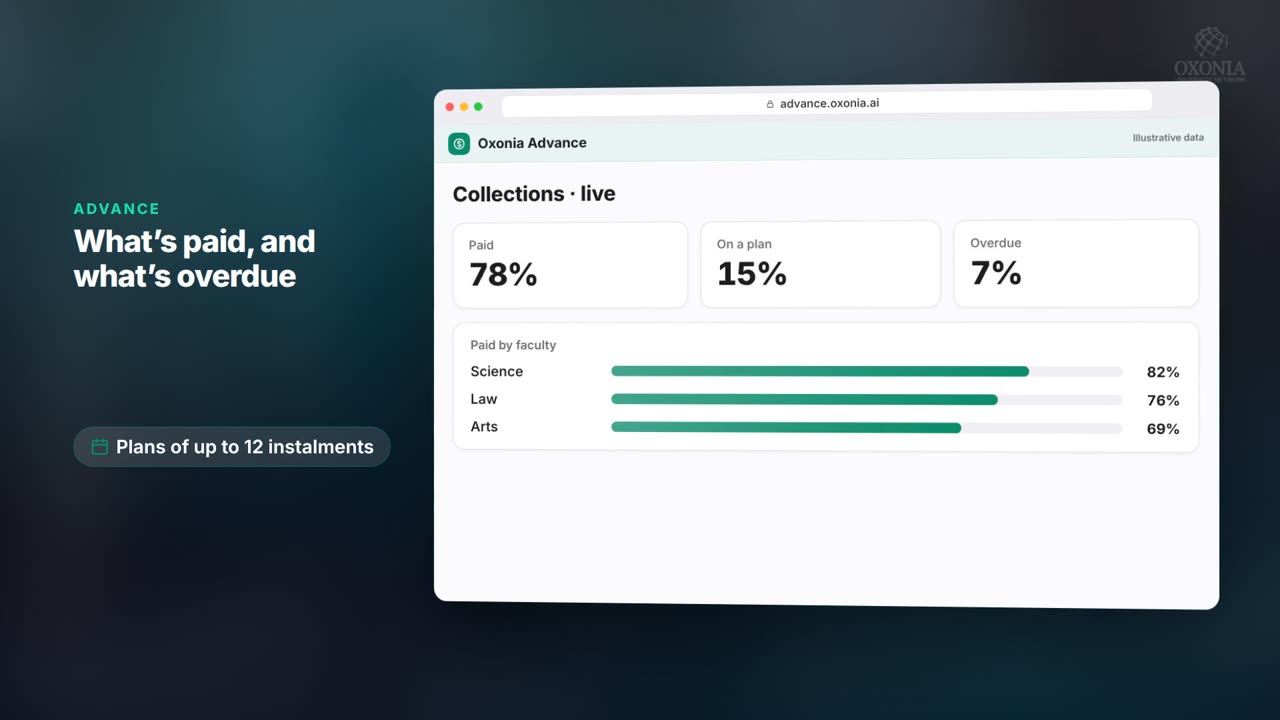 1:11Conference film · Chapter 5Operate: records, Advance and Wallet
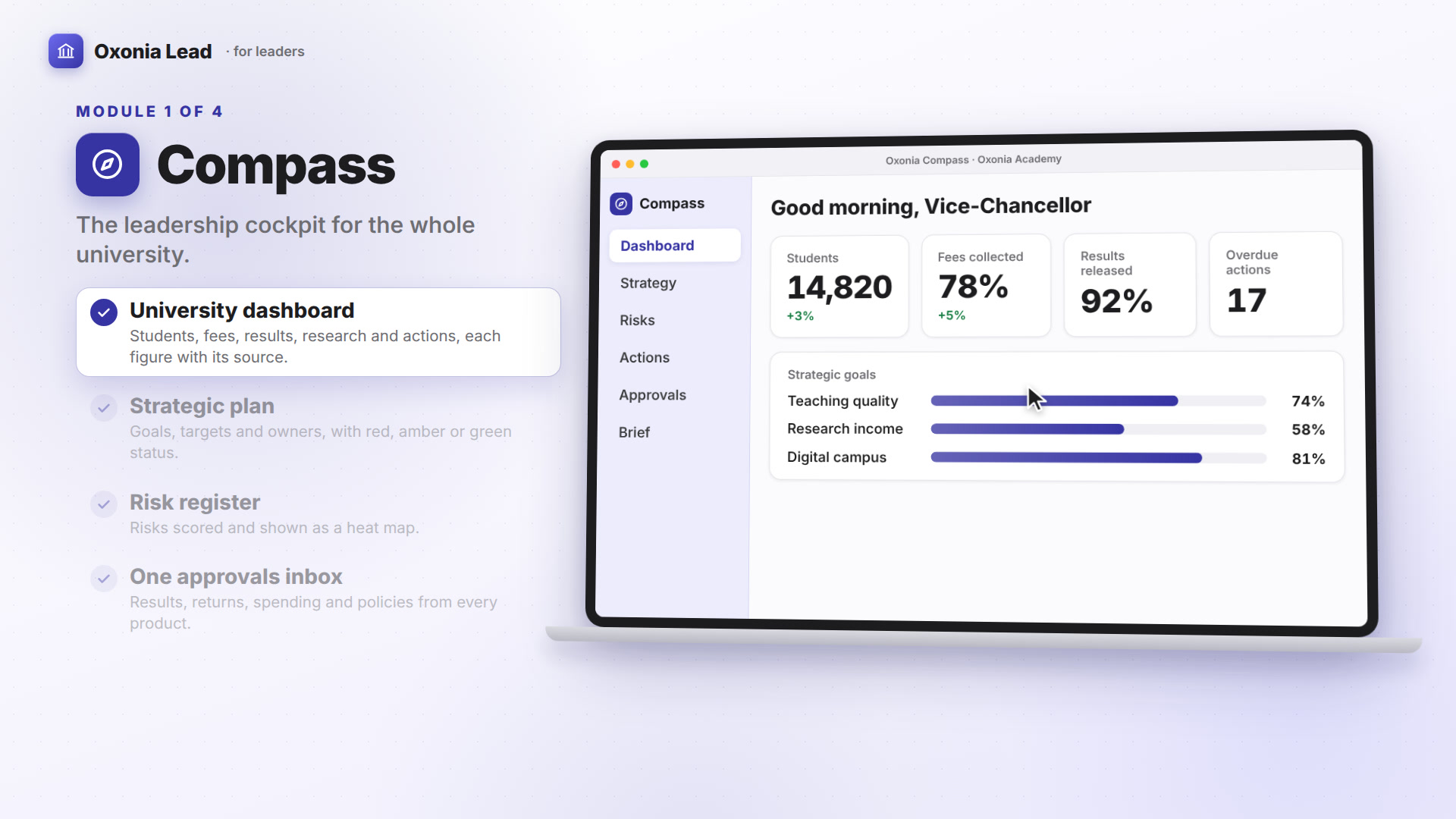 1:40Suite filmOxonia Lead in 100 seconds
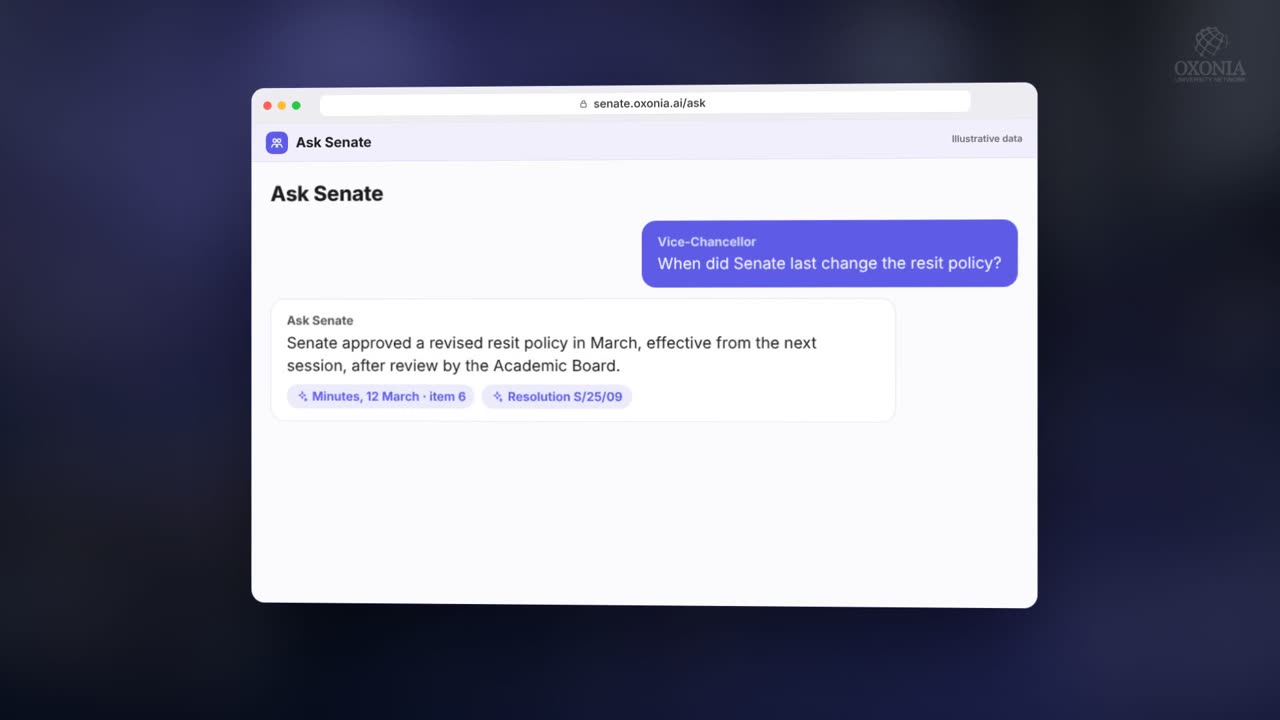 1:54Conference film · Chapter 4Lead: Senate, Compass, Office, Policy, Library
Keep reading
Related articles
Oxonia Operate →
For the Registry, Admissions, Finance, Student Services and departmental administrators: meetings, approvals and memos automated, applications screened against your criteria, and answers for students and staff at any hour.