Onboarding guide
Getting Started with Oxonia: An Onboarding Guide for Universities
The universities that get most from Oxonia start small, connect sign-in first and bring their own data in early. Here is the order that works.
Start small, with a clear first goal
The most successful Oxonia universities do not switch everything on at once. They pick one department, one committee or one year group, agree what should change, and grow from there. A first goal might be captions and study packs for a large first-year module, papers and minutes for one committee, or payment plans for one faculty's fees.
Choose the suite that matches the goal: Lead for leaders, Operate for administrators, Teach for lecturers, Learn for students and Discover for researchers. Our team plans the go-live with you.
The steps below follow the order that avoids rework.
Before the first step, agree three things inside the university. Who owns the project: usually a deputy vice-chancellor or the registrar, with a named lead in IT. Which group goes first, and who in that group will give honest feedback. And how you will know it worked: fewer printed packs, faster results, more fees collected on time, or students using study packs before exams. Write the goal down; you will come back to it in step six.
Step 1: Connect sign-in
Everything in Oxonia sits behind one sign-in, the Oxonia Academy ID. Connect it to the university's existing directory first: Microsoft Entra ID, Google Workspace, another OpenID Connect provider or SAML 2.0, including Shibboleth. Staff and students then sign in with the account they already have.
After signing in, each person lands on the app launcher, which shows only the products the university has bought and that person has been given. A student never sees the Bursar's tools, and nobody sees a product the university has not licensed.
Admins and other privileged users set up two-factor authentication on first sign-in. See security and data protection.
Test sign-in with a handful of staff accounts before inviting anyone else. Check that a staff member and a student both land on the launcher and see only what they should. It takes an afternoon, and it saves a great deal of confusion later.
Step 2: Invite people and give access
In People and access, university admins see a simple grid of people against products, with each person's role in each product. They can add people one at a time, in bulk, or by importing a list, and apply access templates so that, for example, every lecturer in a faculty gets Scribe and Mark in one step.
Admin work can be shared. A delegated admin can manage just one product, such as the exams officer for Mark, while the university admin keeps the whole picture. Every change to access is in the audit log, shown at the foot of the console.
Think about roles before inviting large groups. Each product has its own roles, such as secretary, chair and member in Senate, or lecturer, moderator and exams officer in Mark. A person who holds two roles, a dean who also sits on Senate, keeps one account with both. Unknown roles always fall back to the least access, so a mistake is more likely to block someone than to over-share.
Step 3: Bring in your data
Next, import the records the first goal needs. The import wizard takes people, student records, faculties and departments, programmes, courses, registrations, fee accounts, bills, payments, funds, alumni, committees, members and policies.
Built-in profiles map exports from JAMB CAPS, Nigerian student portals, Remita, Paystack, Moodle, Google Workspace and Microsoft Entra ID automatically. A dry run shows every error, warning and duplicate before anything is written, and a batch can be undone in one step.
Read importing data from your existing systems for the detail.
Agree a cut-off date with the registry and the bursary, take the exports on that date, and import them in a sensible order: people first, then faculties and departments, programmes and courses, student records and registrations, and finally fees. Keep the problem-rows file from each batch; it is the quickest list of what needs cleaning in the source system too.
Step 4: Connect the tools you already use
In Integrations and keys, university admins connect what the products they bought need. Each connection explains how to get the key, saves it encrypted, never shows it again, and has a Test button with a clear status.
- Learning platform: Moodle, Canvas or Blackboard through LTI 1.3, for Scribe and Tutor. See connecting your learning platform.
- Payments: the university's own Paystack account, for Advance and Wallet.
The same page links to the keys that Scribe, Mark and Nexus need from the university, such as the ORCID member API client for Research, and shows where each one is set.
| Step | Who leads | Done when |
|---|---|---|
| 1. Connect sign-in | IT | Staff sign in with their university account |
| 2. Invite people | University admin | Each person has the right products and roles |
| 3. Bring in data | Registry, bursary | The dry run is clean and the import is committed |
| 4. Connect tools | IT, bursary, research office | Each connection's Test shows it working |
| 5. Train and switch on | Product leads | The first group is using the product |
| 6. Watch and grow | Leadership | The first goal is reviewed and the next chosen |
Step 5: Train people and switch on
A guided, narrated product tour shows staff around before they start, and is available in several languages, including Hausa, Yoruba, Igbo, Nigerian Pidgin, Malay, Turkish, Arabic, French and Portuguese.
Oxonia Policy adds training on the university's AI rules for staff and students, with certificates that anyone can check online. Learners who opt in can receive one short lesson a day on WhatsApp.
Then switch on for the first group. Lecturers record, committees publish packs, the bursary sends plans. Keep the first weeks simple and collect feedback.
Name a champion in each pilot group: a lecturer, a committee secretary or a bursary officer who is keen and patient. Champions answer most questions before they reach IT and give the honest feedback a project needs. Plan a short check-in at the end of the second week, while habits are still forming.
Step 6: Watch usage and grow
Plan and usage shows every product's status, seats used and AI credits and recording hours used, with warnings at 80%, 95% and 100%. See AI credits, recording hours and add-ons, explained.
Leaders can follow progress in Compass, where figures appear as each product goes live. After the first term, compare against the goal you set, then add the next department or the next suite.
Universities that join the Oxonia University Network receive two onboarding days and a named success manager. To start, book a demo.
Products in this article
Questions people ask
What should we set up first?
Sign-in. Connect the Oxonia Academy ID to Microsoft Entra ID, Google Workspace, OpenID Connect or SAML 2.0, then invite people.
Can different staff manage different products?
Yes. Delegated admins can manage a single product, while university admins manage everything.
Is there training for staff?
Yes. A narrated product tour in several languages, and AI policy training with checkable certificates in Oxonia Policy.
How long does onboarding take?
It depends on the products and the data. Our team plans the go-live with you.
Leaflets


More videos
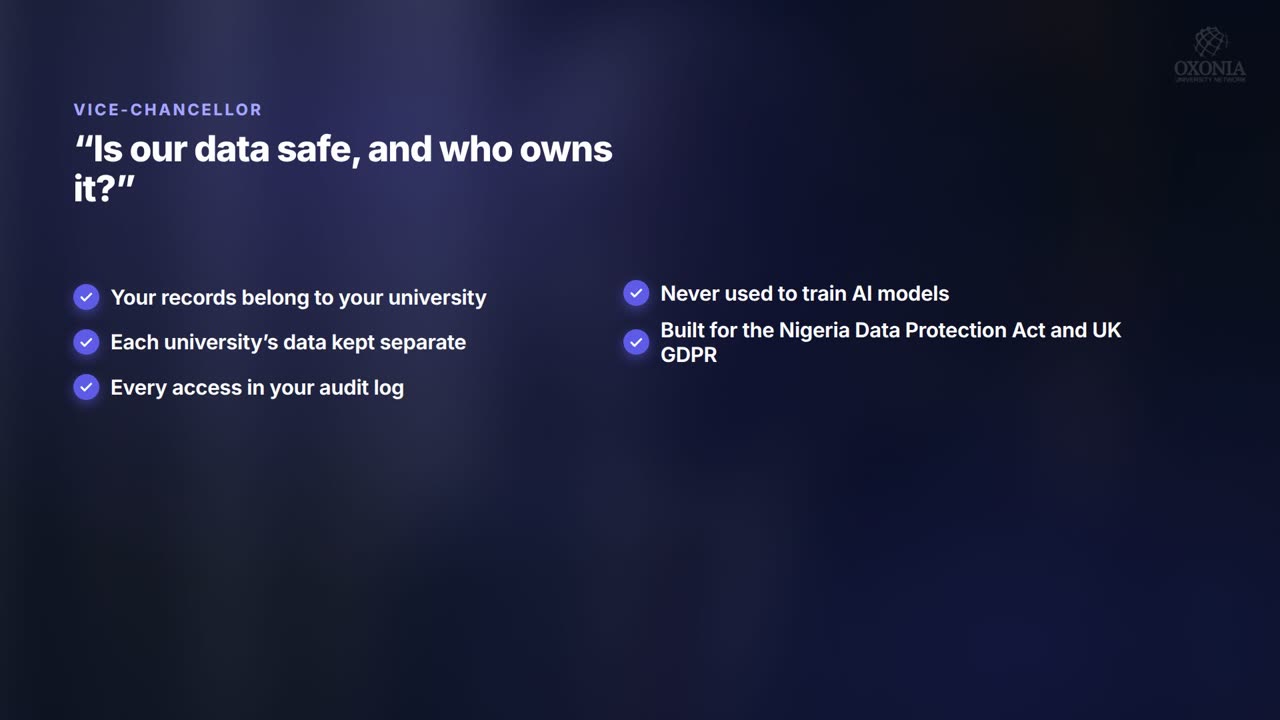 1:34Conference film · Chapter 10Your questions answered
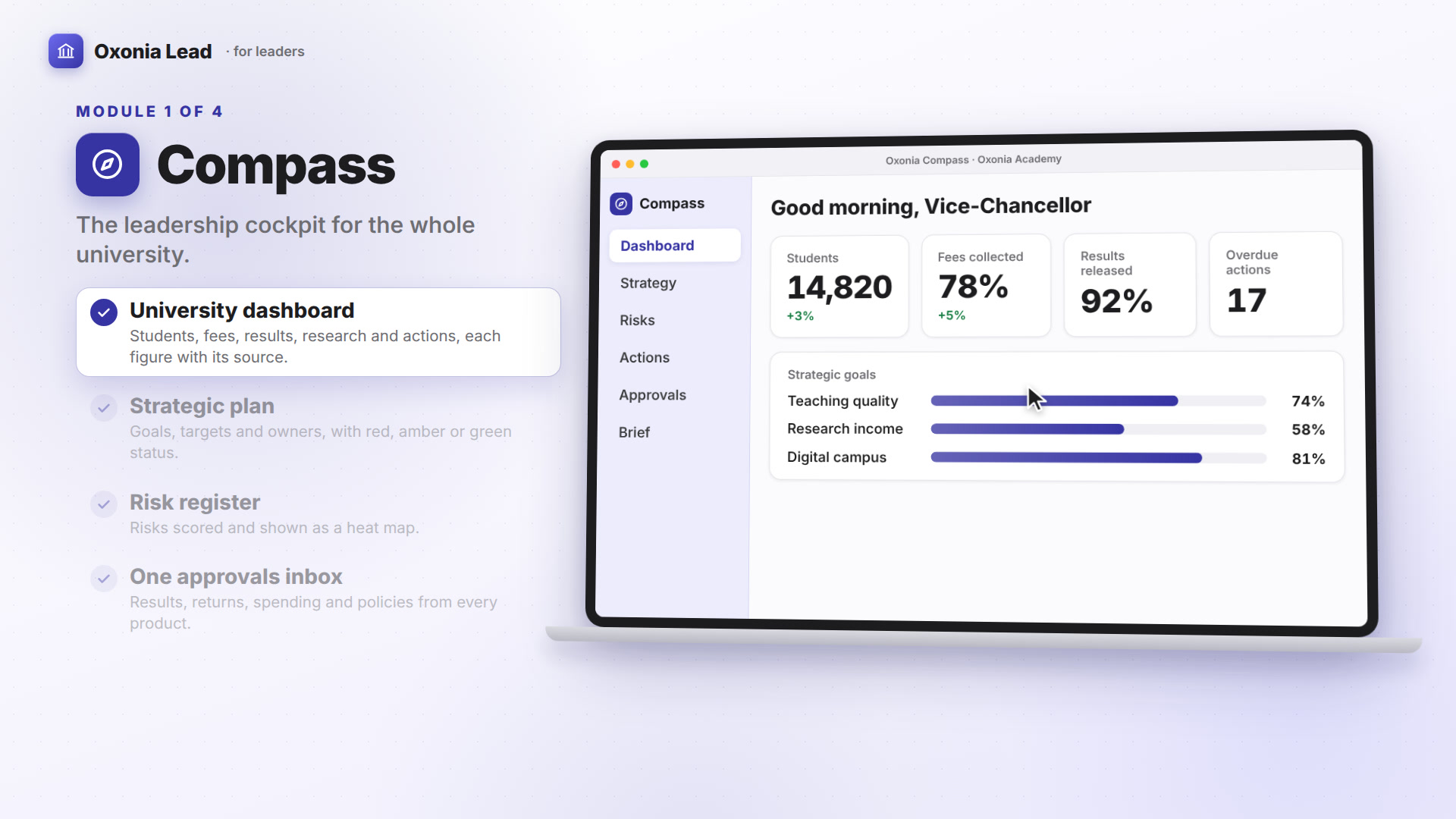 1:40Suite filmOxonia Lead in 100 seconds
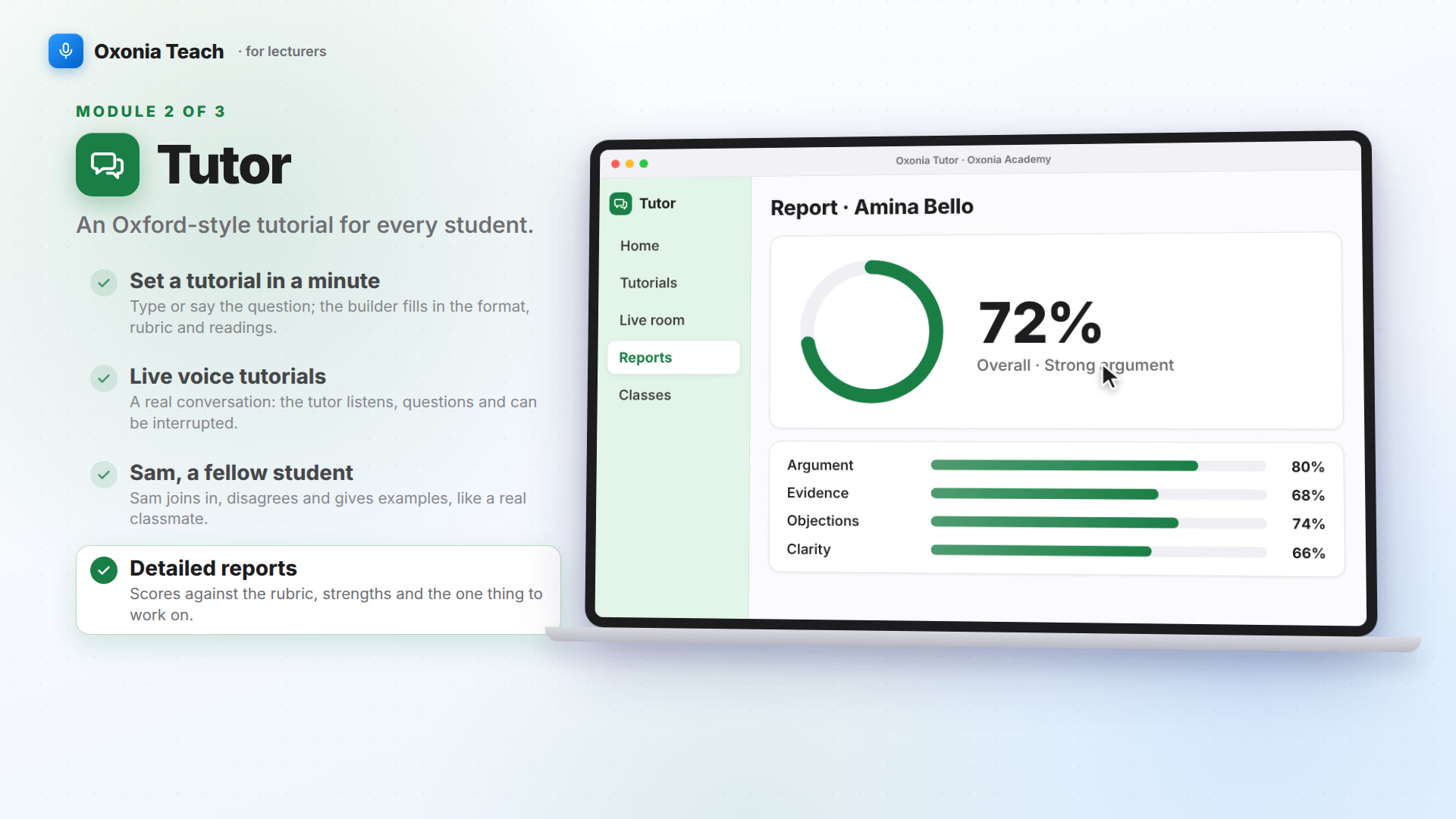 1:39Suite filmOxonia Teach in 100 seconds
Keep reading