Integration guide
Connect Moodle, Canvas or Blackboard to Lecture Tools
Students already have a home for their courses. The best new tools appear there, rather than asking students to go somewhere else.
Why LMS integration matters
Most universities run a learning management system. It might be Moodle, Canvas or Blackboard. Students go there for course pages, readings and announcements. Lecturers have built years of material inside it.
Any new teaching tool has to work with that system. If students must go to a separate site, many will not. If lecturers must copy class lists and upload materials twice, they will stop. Integration is often the difference between a tool that is used and one that is ignored.
This guide explains how Oxonia connects to the LMS, with a focus on Scribe, which syncs with Moodle, Canvas and Blackboard and also connects through LTI.
The guide is written for learning technologists, IT teams and the lecturers who will use the connection every week.
What Scribe sync does
When Scribe is connected to the LMS, lecture materials appear inside the course pages students already use. A recording, its summary, key moments, mind map, quizzes and study pack show up in the right course, for the right students.
Enrolments come from the LMS. When a student joins or leaves a course, their access to that course's lectures follows. Lecturers do not maintain a second class list.
- Recordings and summaries inside course pages
- Quizzes and study packs alongside other course material
- Enrolments taken from the LMS
- Changes in the LMS reflected in Scribe
Students can still open Scribe directly with their Oxonia Academy ID, for example on a phone, and find the same materials there.
Lecturers can choose when materials appear. They might publish the recording straight away and release the quiz a few days later, once they have checked it. The LMS course page shows each item when it is released, alongside the readings and announcements that are already there.
Moodle, Canvas, Blackboard and LTI
Scribe syncs with Moodle, Canvas and Blackboard. These are the systems most universities use, and each has its own way of organising courses. Scribe maps lectures to the right course in each.
Scribe also supports LTI, the common standard for connecting learning tools. LTI lets a lecturer add a Scribe link to a course page, and students who follow it arrive in Scribe already signed in and in the right course.
Universities that run more than one LMS, for example one faculty on Moodle and another on Canvas, can connect each. The admin console shows every connection in one place.
Because Scribe maps to existing courses, lecturers keep their current course layout. They do not need to rebuild pages or move material. Scribe items simply join what is already there.
Setting up the connection
Set-up is handled by the university's admin, usually a learning technologist or IT lead, in the university admin console. The steps are much the same for each LMS.
- Agree which faculties or courses to connect first
- Create the connection in the admin console and in the LMS
- Match LMS courses to Scribe modules
- Test with one course and a small group of students
- Extend to more courses once the test works
Start with one department. That shows any issues before the whole university depends on the connection.
During the test, check that enrolments match, that students see the right lectures, that items appear where lecturers expect and that students can open Scribe on a phone. Ask a few students to try it and report anything confusing. Fix issues before you extend, and write a one-page guide for lecturers based on what you learned.
| LMS | Connection | What appears in the course |
|---|---|---|
| Moodle | Scribe sync and LTI | Recordings, summaries, quizzes, study packs |
| Canvas | Scribe sync and LTI | Recordings, summaries, quizzes, study packs |
| Blackboard | Scribe sync and LTI | Recordings, summaries, quizzes, study packs |
| Other LTI-compatible systems | LTI | Links into Scribe, signed in |
Other Oxonia tools and the LMS
Students reach the other Oxonia tools with the same Oxonia Academy ID. Tutor tasks can be linked from course pages, so students move from a lecture to a tutorial on the same topic in a few clicks.
Exam results from Mark are released to students in Oxonia Learn, with per-question feedback and the marked script. Reading lists from Library can be shared with students for each course.
For more on how one login ties everything together, read one login for every university system.
Leaders who use Compass can see teaching figures from Scribe and Mark on the leadership dashboard, so the work done through the LMS also informs planning at the top of the university.
Data, roles and good practice
Access follows roles. Lecturers see their own courses. Students see the courses they are enrolled in. Admins manage connections. The LMS remains the source for enrolments, and Oxonia does not change your LMS course structure.
Agree simple rules with lecturers before launch. Which lectures are recorded? Who reviews summaries before release? How long do recordings stay available? Clear answers make lecturers comfortable and students confident.
Every Ai enabled summary or quiz is a draft until the lecturer adopts it, and each one cites the lecture moments it came from. That rule applies whether students open it in the LMS or in the Oxonia app.
Think about accessibility too. Captions, summaries and audio recaps help students with different needs, and they work the same way whether students reach them through the LMS or the Oxonia app.
Price and next steps
LMS sync is part of Scribe. Scribe costs £4,900 a year on the Department plan, or £24,000, £39,000 and £58,000 a year for universities with up to 5,000, 5,000 to 15,000 and 15,000 to 40,000 students.
Scribe is part of Oxonia Teach and Oxonia Learn. See pricing or the Teach suite guide.
Starting with one department is the ideal time to test the LMS connection on real courses.
Products in this article
Questions people ask
Does Scribe work with Moodle?
Yes. Scribe syncs with Moodle, Canvas and Blackboard, and also supports LTI.
What is LTI?
LTI is a common standard for connecting learning tools to an LMS. It lets students follow a link from a course page into Scribe, already signed in.
Where do enrolments come from?
From the LMS. When a student joins or leaves a course, their access to its lectures follows.
Can we connect more than one LMS?
Yes. Each connection is managed in the university admin console.
Leaflets


More videos
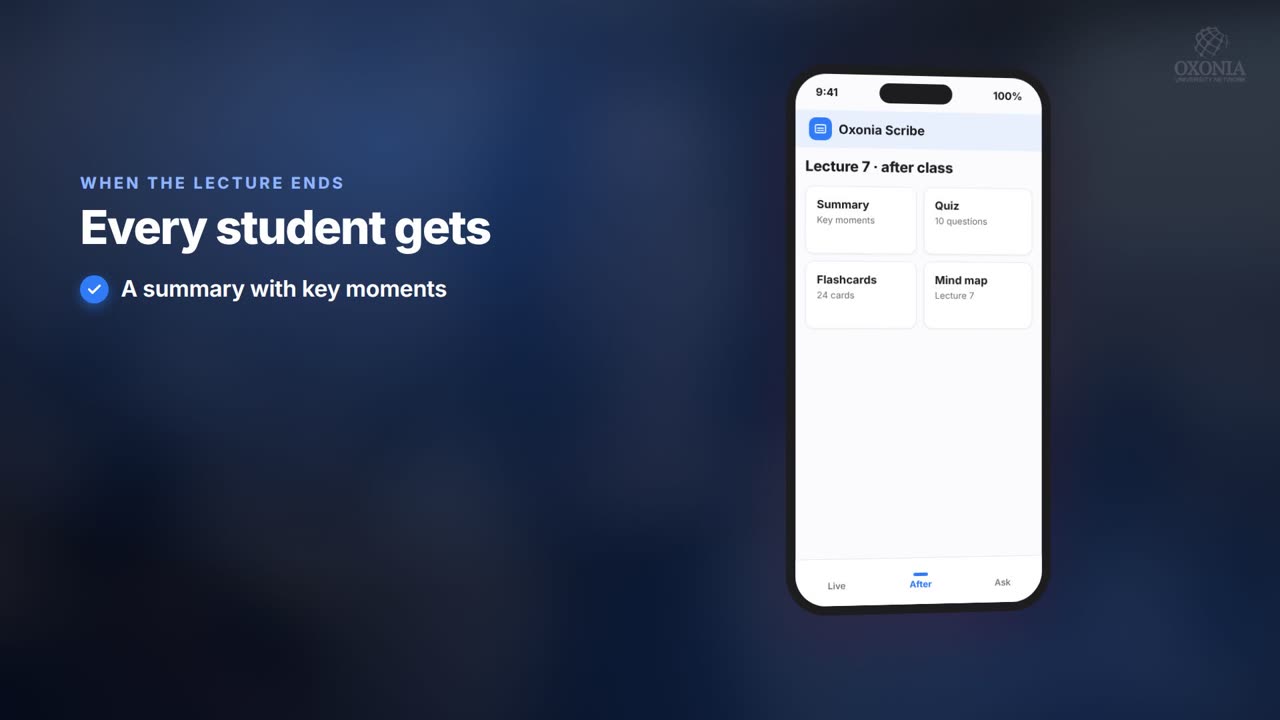 1:19Conference film · Chapter 6Teach: Scribe and Tutor
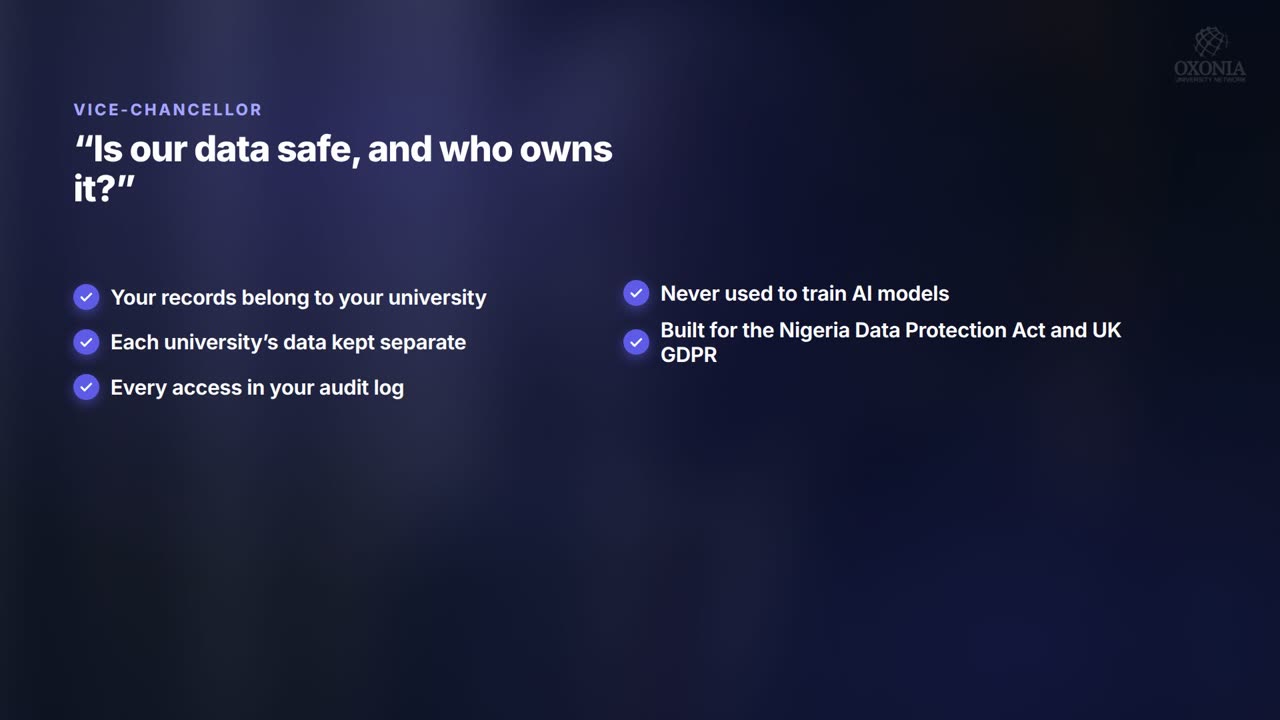 1:34Conference film · Chapter 10Your questions answered
 0:54Conference film · Chapter 9Time, money and income
Keep reading
Related articles
Oxonia Teach →
For professors, lecturers, tutors and course leaders: the syllabus drafted week by week, every lecture captured live in its own language, assessment that explains every mark under the university's AI-use policy, and progress monitoring that shows who needs support.